Creating a Sales Order
A Sales Order is the document that records a customer's commitment to buy goods or services. In Evrykit, every invoice and payment is ultimately linked to a sales order.
💡 You need at least one customer and one product before you can create a sales order. Set these up first in the Customers and Inventory modules.
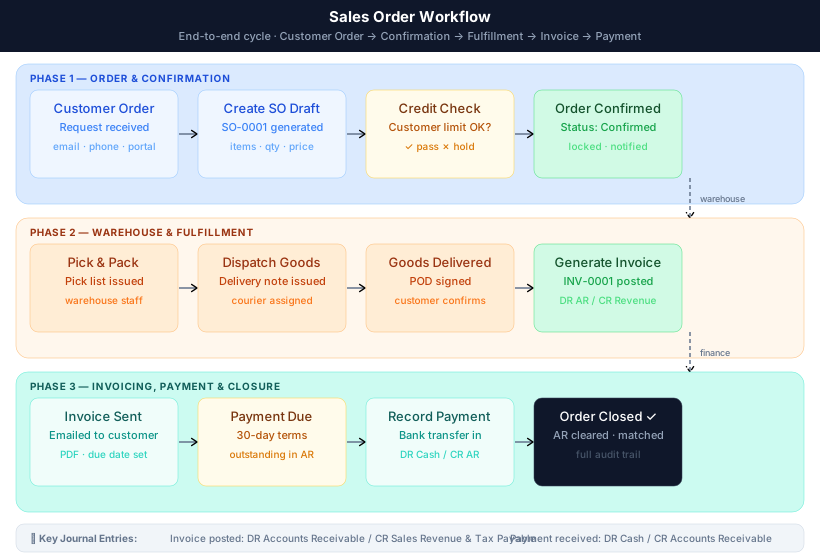
Sales Order Workflow
The diagram below shows the full lifecycle — from the initial customer order through to payment collection and account closure:
Step-by-Step: Creating a Sales Order
1. Navigate to Sales → Orders
From the sidebar, click Sales then Orders. Click the New Order button in the top right.
2. Select a customer
Type the customer name in the Customer field and select from the dropdown. If the customer doesn't exist, create them under Sales → Customers first.
3. Set the order date and reference
The order date defaults to today. Enter your internal reference number if you have one, or leave it blank to use the auto-generated document number.
4. Add line items
Click Add Line to add products. For each line, select the product, enter the quantity and unit price, and choose the applicable tax rate. The line total updates automatically.
5. Review and confirm
Review the order total (subtotal + tax). Click Save as Draft to save without confirming, or Confirm Order to move it to Confirmed status.
Order Statuses
Sales orders move through the following statuses:
| Status | Description |
|---|---|
| Draft | Editable. Not yet committed. |
| Confirmed | Committed to the customer. Goods can be dispatched. |
| Invoiced | An invoice has been generated from this order. |
| Paid | Invoice fully settled. |
| Cancelled | Order voided. Cannot be edited. |
⚠️ Once an order is Confirmed, you cannot change the customer or date. Cancel and recreate the order if corrections are needed at the header level.
Generating an Invoice
From a confirmed sales order, click Create Invoice. Evrykit automatically copies the lines and posts the accounting entries:
- Debit Accounts Receivable
- Credit Sales Revenue
- Credit Tax Payable (for taxable lines)
Required Permissions
To create and confirm sales orders you need:
Pages.Sales.SalesOrders.ViewPages.Sales.SalesOrders.CreatePages.Sales.SalesOrders.Confirm
Contact your administrator if you cannot see the Sales menu or the New Order button.