Configuring AI API Keys
Evrykit uses your own AI provider account for report analysis. This means you are in full control of your API usage, billing, and which provider you trust with your business data. You need to add at least one API key before the AI panel can be used.
Where to Add Keys
Navigate to Settings → Application Settings, then click the AI Keys tab.
You will see a form with three sections — one for each supported provider. You only need to configure the provider(s) you plan to use.
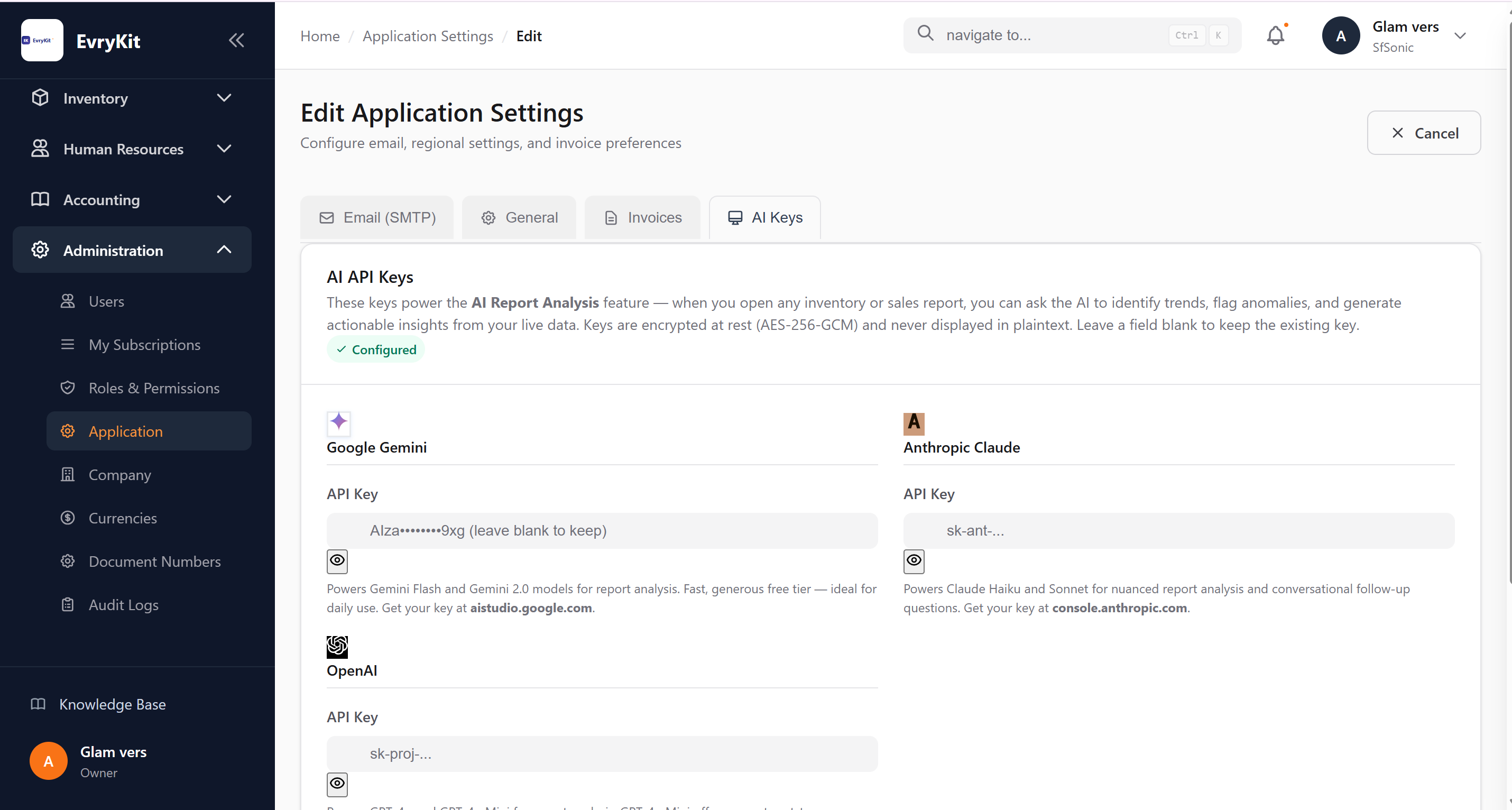
Google Gemini
Best for: High-volume daily use, fast responses, getting started quickly.
Free tier: Gemini Flash offers a generous free quota — suitable for small teams running reports throughout the day without incurring costs.
Steps
- Open aistudio.google.com and sign in with your Google account.
- Click Get API key → Create API key.
- Copy the key (it starts with
AIzaSy...). - Paste it into the Google Gemini → API Key field in Evrykit and save.
Anthropic Claude
Best for: Narrative analysis, nuanced reasoning, complex multi-step questions.
Steps
- Open console.anthropic.com and sign in or create an account.
- Go to API Keys → Create Key.
- Copy the key (it starts with
sk-ant-...). - Paste it into the Anthropic Claude → API Key field in Evrykit and save.
Note: Claude requires a paid account or active free credits. Check your usage limits in the Anthropic console.
OpenAI
Best for: Structured data analysis, broad knowledge base, familiar output style.
Steps
- Open platform.openai.com and sign in.
- Go to API Keys → Create new secret key.
- Copy the key (it starts with
sk-proj-...orsk-...). - Paste it into the OpenAI → API Key field in Evrykit and save.
Note: OpenAI requires a funded account. Add credits at platform.openai.com/billing before use.
Setting a Default Model
The Default Model selector lets you choose which model is pre-selected when anyone on your team opens the AI panel. Users can switch models for their session without changing this setting.
Recommendations:
| Situation | Recommended model |
|---|---|
| Just getting started | Gemini Flash (latest) |
| Daily operational reports | Gemini Flash (latest) |
| Monthly management reports | Claude Sonnet 4.6 |
| Executive summaries | Claude Sonnet 4.6 or GPT-4o |
| Cost-sensitive high-volume | GPT-4o Mini or Gemini Flash Lite |
How Keys Are Stored
Your API keys are never stored in plaintext. When you save a key, Evrykit encrypts it using AES-256-GCM before writing it to the database. The displayed values in the settings view are masked (e.g. AIzaSy••••••••GZo) and the full key is only ever decrypted in memory at the moment a report analysis request is made.
See API Key Security & Encryption for the full technical details.
Testing Your Setup
After saving your keys, open any report (for example Inventory → Stock on Hand) and click the AI Analyze button in the report toolbar. If the panel opens and returns a response, your key is working correctly.
If you see an error like "API key is not configured", double-check that you saved successfully by returning to the AI Keys settings tab.