AI Features Overview
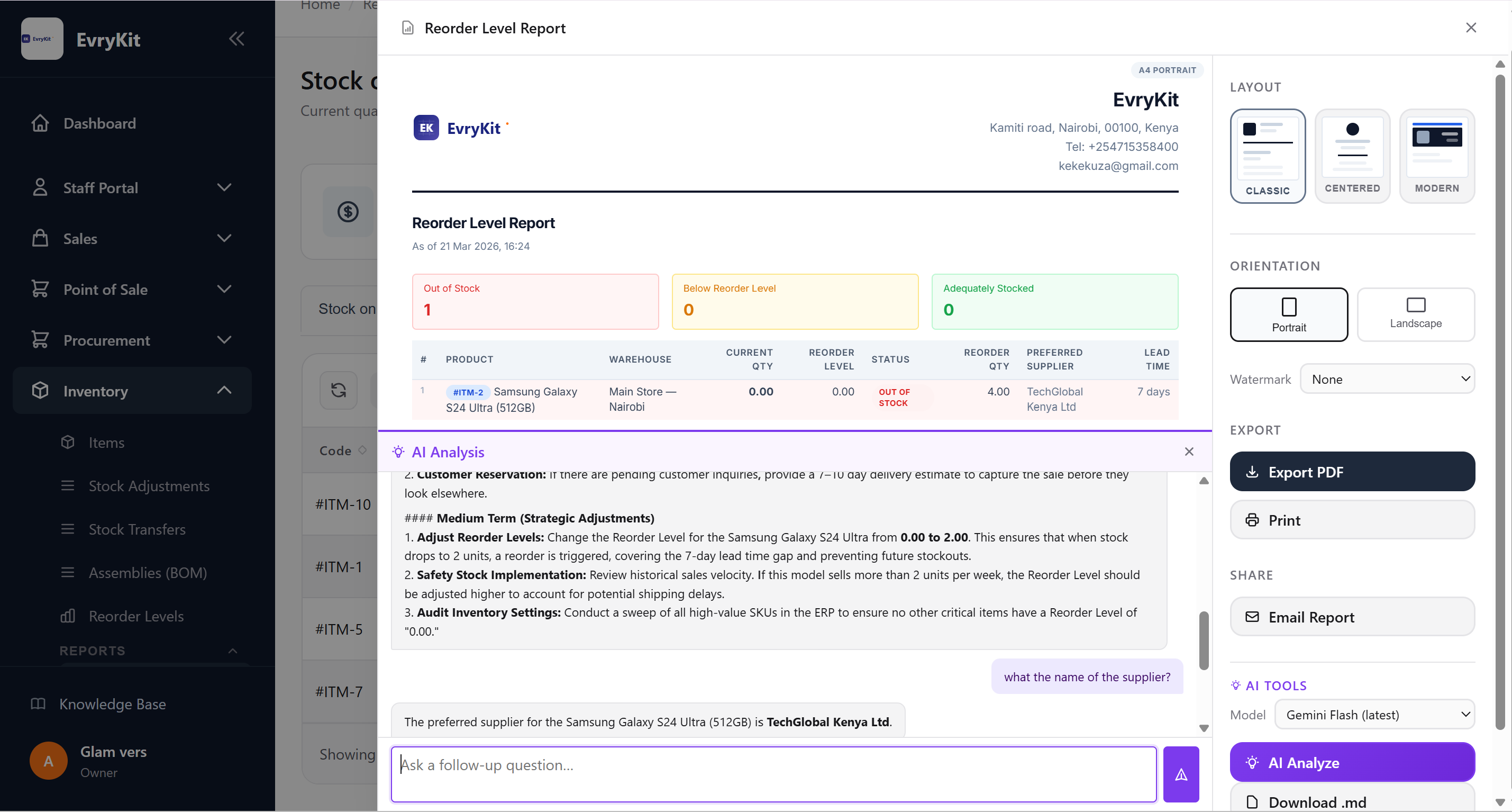
Evrykit embeds AI directly into your reporting workflow. Rather than exporting data to a spreadsheet and asking an external AI tool to make sense of it, you can talk to the data right inside any report — instantly, in context, without leaving your screen.
What AI Can Do
Report Analysis
Every report in Evrykit — whether it covers inventory, sales, purchasing, accounting, accounts payable, or any other module — has an AI Analysis panel available in the toolbar. Open the panel, select your preferred model, and ask anything about the data currently displayed:
- "Which products are at risk of a stockout in the next 30 days?"
- "Which customers have the highest outstanding balance this quarter?"
- "Summarise the variance between my budget and actual spend by department."
- "Flag any supplier invoices that look unusual compared to the last six months."
- "Which sales reps are underperforming relative to their targets?"
The AI reads the report data on your screen and responds with structured, professional analysis — complete with markdown formatting, numbered insights, and actionable recommendations.
Conversational Follow-Ups
AI analysis is not a one-shot query. The panel maintains a conversation thread for your session:
- Ask an initial question — the AI analyses the report and responds.
- Ask a follow-up — "Tell me more about the top three items you flagged."
- Drill deeper — "What would you recommend as immediate actions for the warehouse manager?"
The full conversation history is kept in context so each follow-up builds on what was already discussed.
Downloading Results
After an analysis session you can export the conversation in two formats:
| Format | Use case |
|---|---|
| Markdown (.md) | Share with technical teams, paste into documentation, or import into Notion/Obsidian |
| Attach to management reports, email to stakeholders, or file for audit purposes |
Where AI Analysis Is Available
The AI panel is available on all report pages across every module:
| Module | Example reports |
|---|---|
| Inventory | Stock on hand, stock movements, valuation, ageing, reorder levels |
| Sales & CRM | Sales by customer, sales by product, order pipeline, rep performance |
| Purchasing | Purchase orders by supplier, GRN history, spend analysis |
| Accounting | Account ledger, trial balance, profit & loss, cash flow |
| Point of Sale | Session summaries, daily takings, cashier performance |
| HR | Headcount, leave balances, payroll summaries (coming soon) |
As new modules are added to Evrykit, the AI panel is included from day one — it is a platform-wide feature, not module-specific.
Supported AI Providers
You can choose which AI provider and model to use. Each has different strengths:
- Google Gemini — fast, generous free tier, ideal for high-volume daily reporting
- Anthropic Claude — deep reasoning, nuanced language, excellent for narrative reports
- OpenAI GPT-4o — broad knowledge, strong at structured analysis and tabular data
See Choosing the Right Model for a detailed comparison.
Getting Started
- Go to Settings → Application Settings → AI Keys
- Add your API key for at least one provider
- Open any report and click the AI Analyze button in the report toolbar
Full setup instructions: Configuring AI API Keys.