Navigating the Dashboard
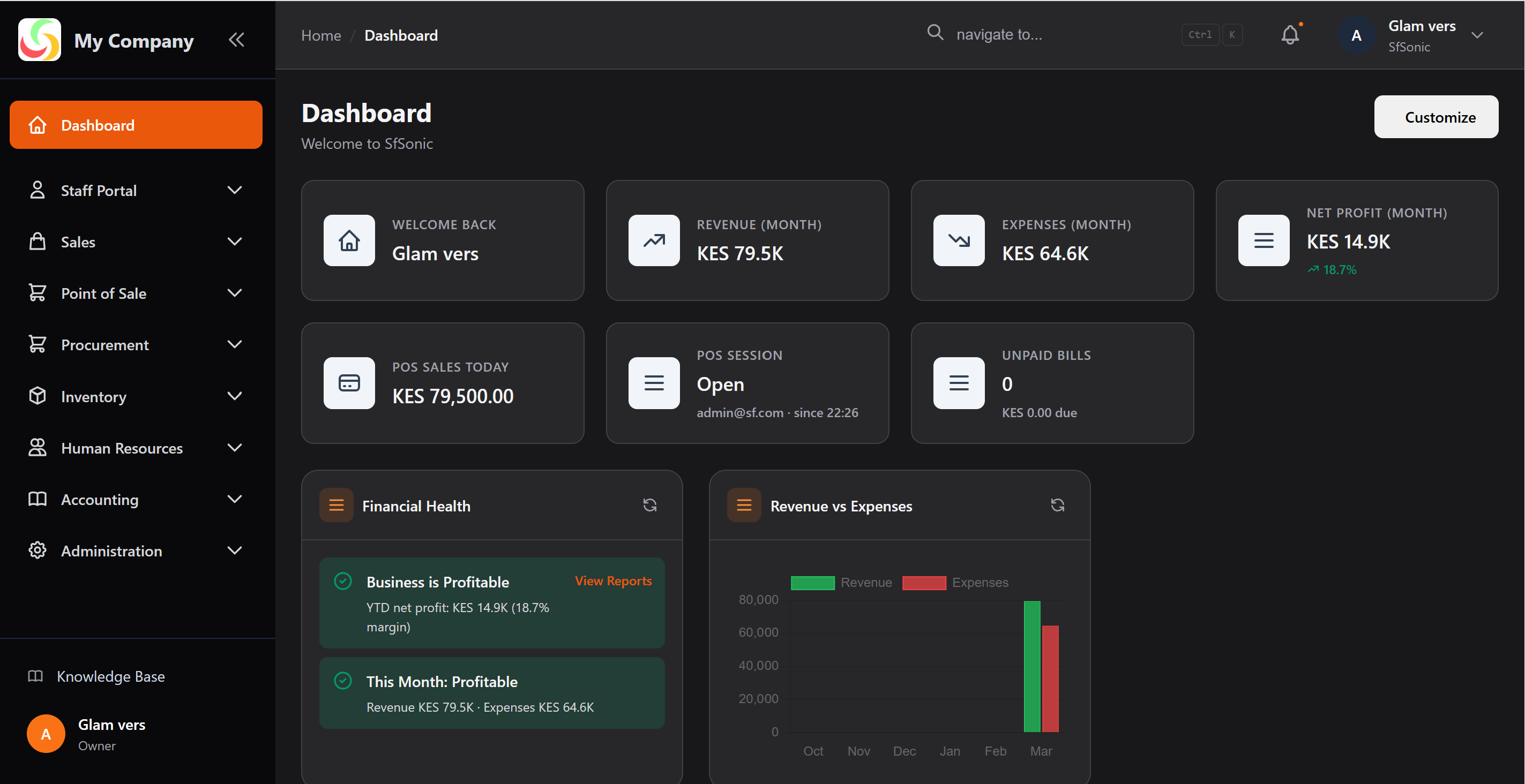
The dashboard is your home screen. It shows real-time KPIs and shortcuts for the modules you use most.
Widgets
Widgets are data cards displayed on your dashboard. Available widget types:
| Type | Example |
|---|---|
| Stat | Revenue MTD, Products in Stock, POS Sales Today |
| List | Recent Invoices, Recent Movements |
| Chart | Revenue vs Expenses (bar), Stock by Category |
| Alert | Inventory alerts, System notifications |
| Timeline | Recent GL activity, Audit log |
Personalising Widgets
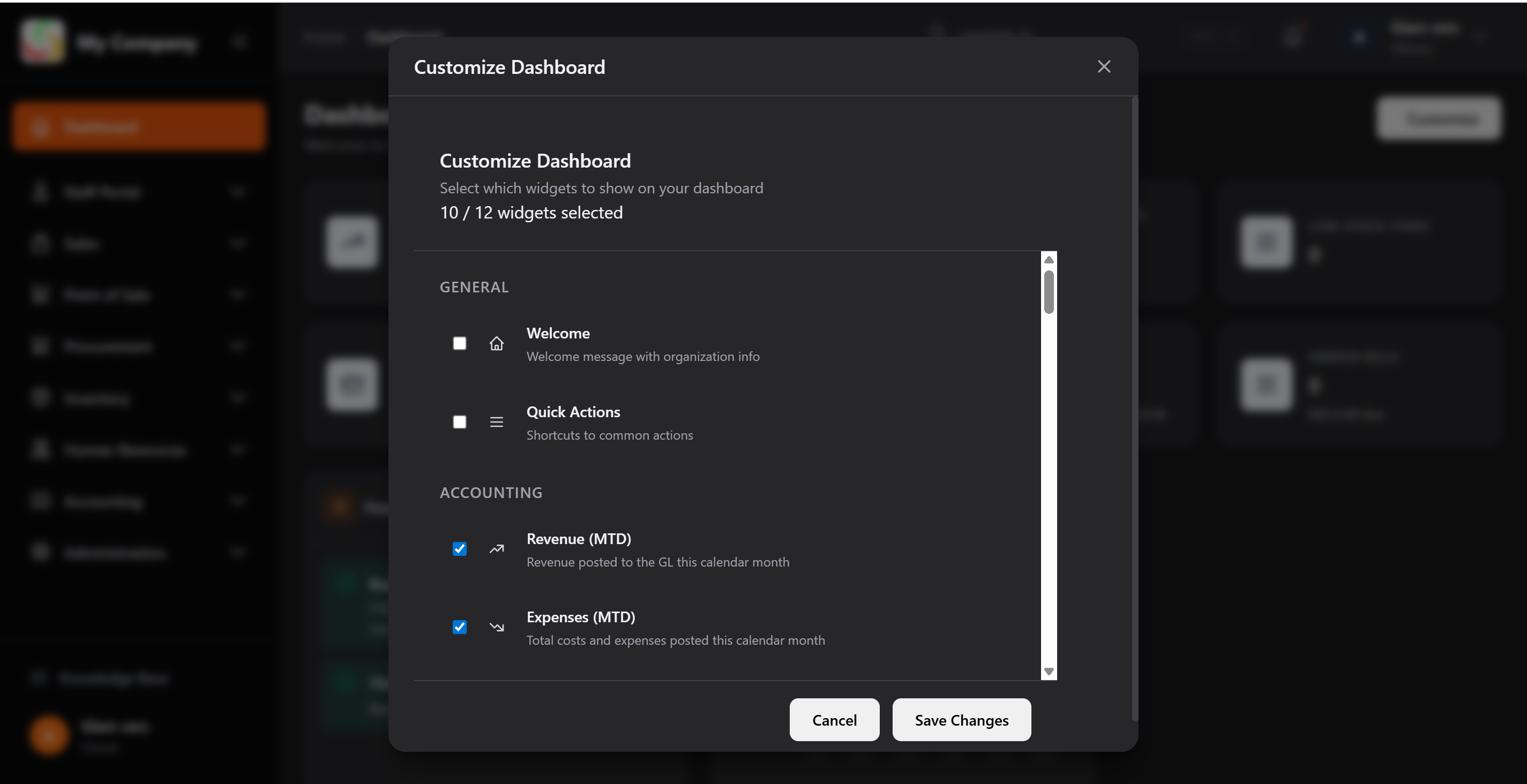
Click Customise Dashboard (top right) to open the widget picker. You can:
- Enable or disable individual widgets
- Drag to reorder them
- Save your layout per-user (each user has their own preference)
💡 Only widgets you have permission to see will appear in the picker.
Quick Links (Command Palette)
Press Ctrl + K (or ⌘ + K on Mac) to open the global search / quick links panel.
Type anything — "new invoice", "products", "leave request" — and jump directly to any page in the system. Results are filtered by your permissions.
Sidebar Navigation
The left sidebar contains the full module menu. Modules with sub-pages have collapsible sections. The sidebar can be collapsed to icon-only mode by clicking the toggle arrow.
Top Bar
The top bar shows:
- Breadcrumb — where you are in the app
- Search icon — opens the quick links panel
- Theme toggle — switch between light and dark mode
- User menu — profile, settings, logout
Knowledge Base
Click Knowledge Base in the sidebar footer (bottom-left) to open the help documentation in a new tab.